Use the guided tester to record observations. Browser response measurements are not hardware latency or true USB polling-rate measurements.
Open the controller tester →Your controller can respond in a browser tester and still fail to appear in a calibration device picker. That is not a contradiction. The tester and calibration page ask the browser for different kinds of access. A successful connection through one does not prove that the other is supported.
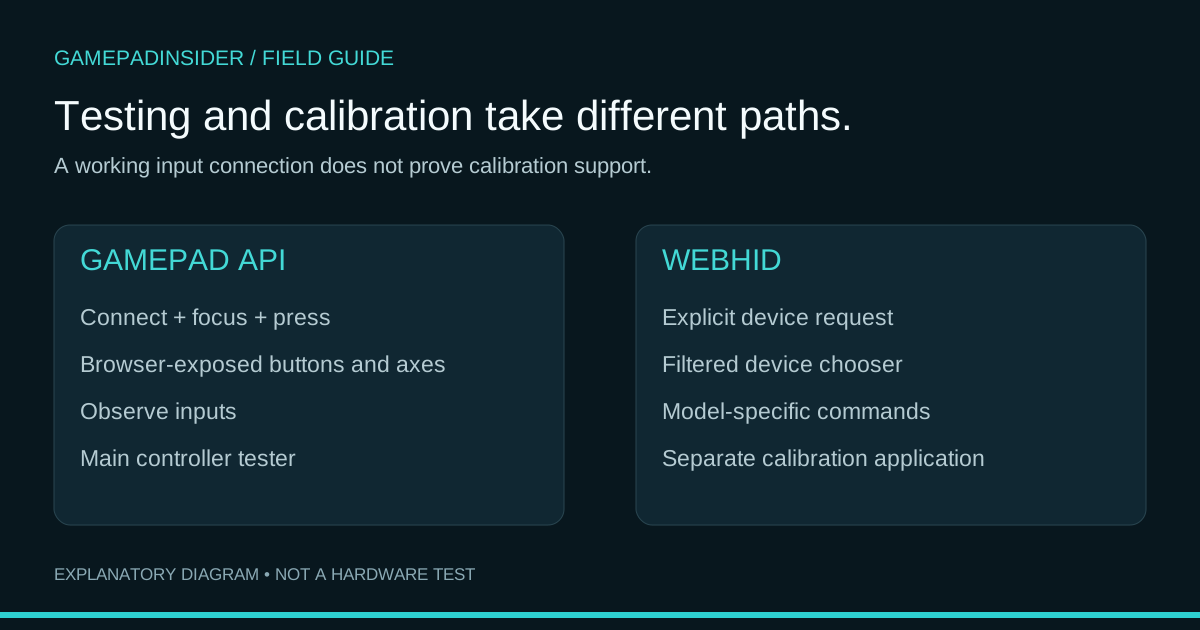
GamepadInsider uses the Gamepad API for its main input tester and WebHID for its separate PlayStation calibration area. This article explains the distinction and gives you a way to identify where a connection stops. It does not claim that calibration has been physically verified on your controller.
The two paths at a glance
| Question | Main controller tester | PlayStation calibration |
|---|---|---|
| What is the task? | Observe exposed buttons, axes and supported basic vibration. | Communicate with supported devices using model-specific calibration commands. |
| Browser interface | Gamepad API. | WebHID. |
| How do I start here? | Connect, focus the tester and press a controller button. | Read preparation guidance, then use Connect to request a device. |
| Does this change calibration? | The input and visual-deadzone checks do not recalibrate the controller. | Calibration operations may change device settings; temporary and permanent actions must be distinguished. |
| Which devices appear? | Devices the browser exposes as gamepads. | Devices matching the application’s supported-model filters and browser access rules. |
| Connection expected by this site | Depends on the browser and device. | USB for the current calibration flow. |
Gamepad API: the browser supplies an input view
The Gamepad API exposes device state through objects containing buttons, axes and identifying information. A page reads the current state rather than interpreting every device’s raw protocol itself. Browser exposure may require interaction while the page is visible. MDN documents this connection behaviour.
In the tester, start with the device selector and mapping label. Standard mapping lets the site associate common button and stick positions with labels. A raw mapping needs more careful interpretation. A device being visible only establishes that this input path is available; it does not confirm advanced features, authenticity or calibration support.
The browser response view is also limited to what the page observes. Moving to another API is not, by itself, proof that you now have a valid hardware-latency measurement. A benchmark still needs a defined start event, endpoint and method. The input-lag guide explains that distinction.
WebHID: permission to communicate through device reports
HID means Human Interface Device. HID communication uses reports; input reports carry device-to-application data, output reports go the other direction, and feature reports can be exchanged in either direction. Their device-specific meaning matters. Chrome’s WebHID documentation explains these report types.
A calibration application needs more than a recognizable controller name. It must understand the relevant reports and commands for the device. GamepadInsider’s calibration code is adapted from DualShock Tools, with attribution shown in the calibration area. It is not a generic calibration protocol for every gamepad.
WebHID availability is more limited than general gamepad input. The device request needs a secure context and user activation, and the browser presents a permission chooser. Filters narrow which devices are offered. These requirements are documented in MDN’s requestDevice reference and WebHID overview.
The connection sequence on this website
- Open the calibration page and read its preparation and hardware-verification notice. The current flow is intended for supported PlayStation hardware over a USB data connection.
- On first use, Connect opens the preparation notice. Accepting that notice is not the same as selecting a controller. Use Connect again when you are ready to request a device.
- Select only the intended supported device in the browser chooser. Cancelling the chooser is a valid way to stop; it is not evidence of a controller fault.
- After selection, the application performs its own connection and device checks. Seeing a device in the chooser is not a guarantee that every calibration operation will be available.
These steps describe the application flow inspected for this article. Its current code requests a device using supported-model filters and rejects a Bluetooth calibration connection with USB guidance. WebHID itself is not synonymous with USB-only access: the MDN overview notes that HID is also used over other transports. The restriction here belongs to this calibration implementation.
If the tester works but calibration does not
| Observation | Next check |
|---|---|
| Buttons work in the tester, but WebHID is unavailable. | Check the browser’s current WebHID support. Use the calibration page’s supported desktop-browser guidance; do not assume all mobile or desktop browsers expose it. |
| The chooser opens but the controller is absent. | Check the exact model, USB data connection and application filters. Absence from this list does not authenticate or condemn a controller. |
| A device is selected but connection fails. | Read the displayed message. Recheck the supported connection and any other application using the device, without assigning an internal fault from the error alone. |
| Neither the operating system nor browser sees the controller. | Return to cable, pairing and OS detection checks before investigating calibration commands. |
Use the connection troubleshooting guide to keep physical connection, OS detection, browser exposure and game support separate. Record the actual message and environment instead of summarizing every failure as “the controller is broken.”
Testing permission is not a promise of safe calibration
The main tester does not rewrite calibration. The calibration application has operations that may do so, including an explicitly confirmed permanent-save action. A browser permission prompt authorizes access; it does not certify the application’s method or your hardware’s response.
Physical-device verification for this rebuilt calibration area remains pending. Do not treat the article, a successful permission prompt or the demo as evidence that a hardware change has been validated. Read the testing methodology and retain a clear distinction between observing inputs and changing device settings.
Sources and next steps
Primary references: MDN Gamepad API, MDN WebHID, MDN requestDevice and Chrome HID documentation. The first-use notice, USB check and supported-model filtering were verified in the site’s current calibration source; the underlying engine is DualShock Tools.
Once the input tester is connected, read the stick measurements or save a diagnostic report before deciding what to investigate next.
Try the relevant check and compare your observations with the guidance.
Stick movement · Buttons · Triggers